FINDER Portal
GPS Tracking
Software

Simply locate, manage, and secure anytime, anywhere.

How the FINDER Portal Works with Your GPS Tracker

When you purchase a GPS tracker from us, you manage it via the Finder Portal. You can easily locate and manage one or multiple trackers, all in one place. Watch the video to see how it works:

Discover All Features of the FINDER Portal, your Complete GPS Tracking Solution

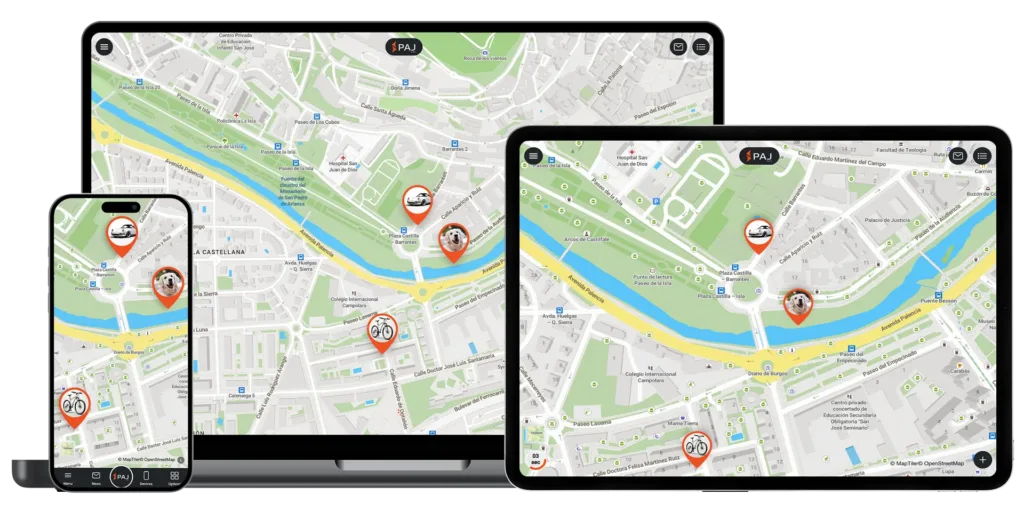
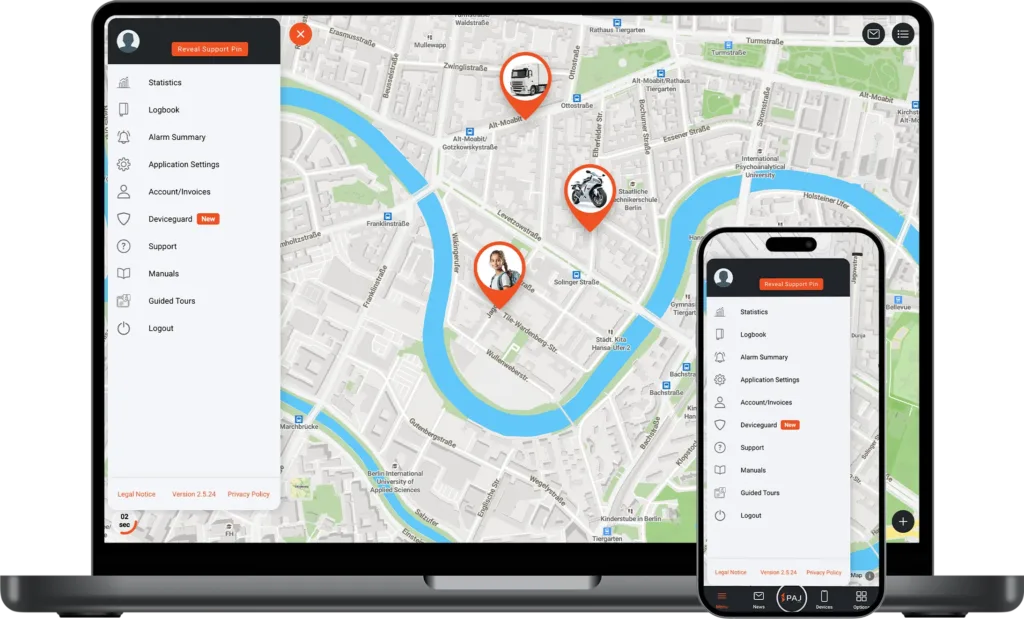
More than just an app, the FINDER Portal provides all the tools you need for efficient GPS tracking, including live location, route history, smart alerts, and central device management, accessible on any device worldwide.

Live tracking

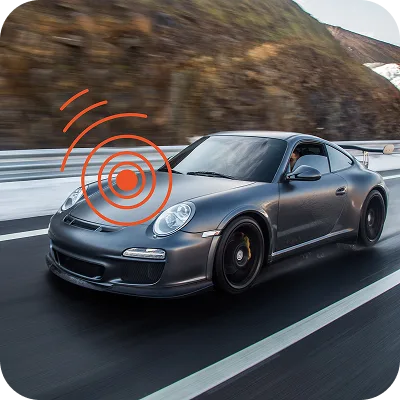
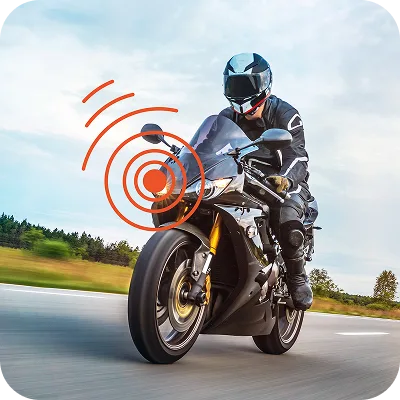
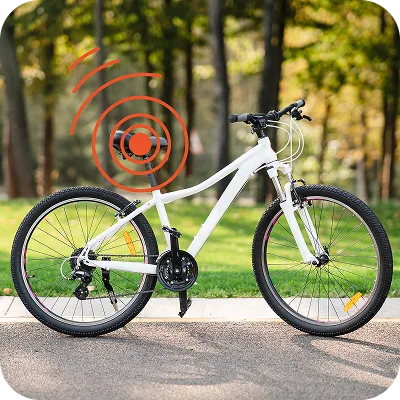
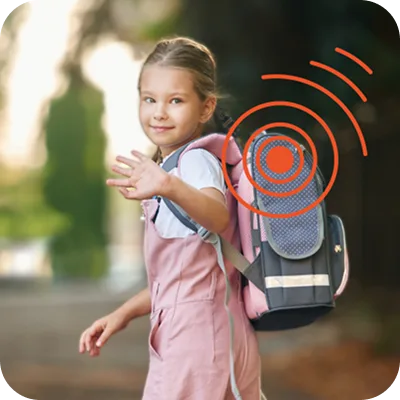
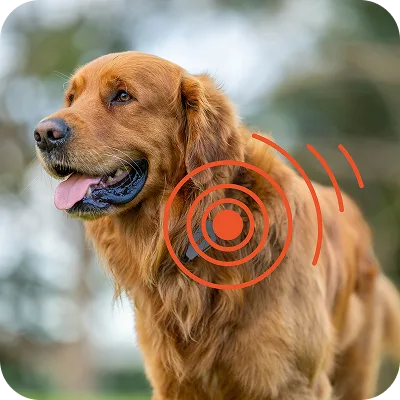
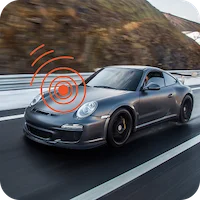
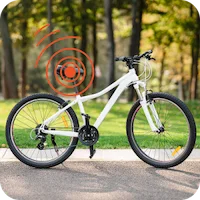
Current locations of all your GPS trackers at any time - whether car, motorcycle, bicycle or other devices

Route history & analyses

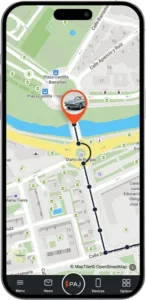
Trace past routes up to 365 days back – with detailed analyses

Central device management​

Manage multiple GPS trackers in one place with a clear overview

Cross-Platform Access

Use the portal seamlessly on smartphone, tablet, or desktop

Intelligent alarms

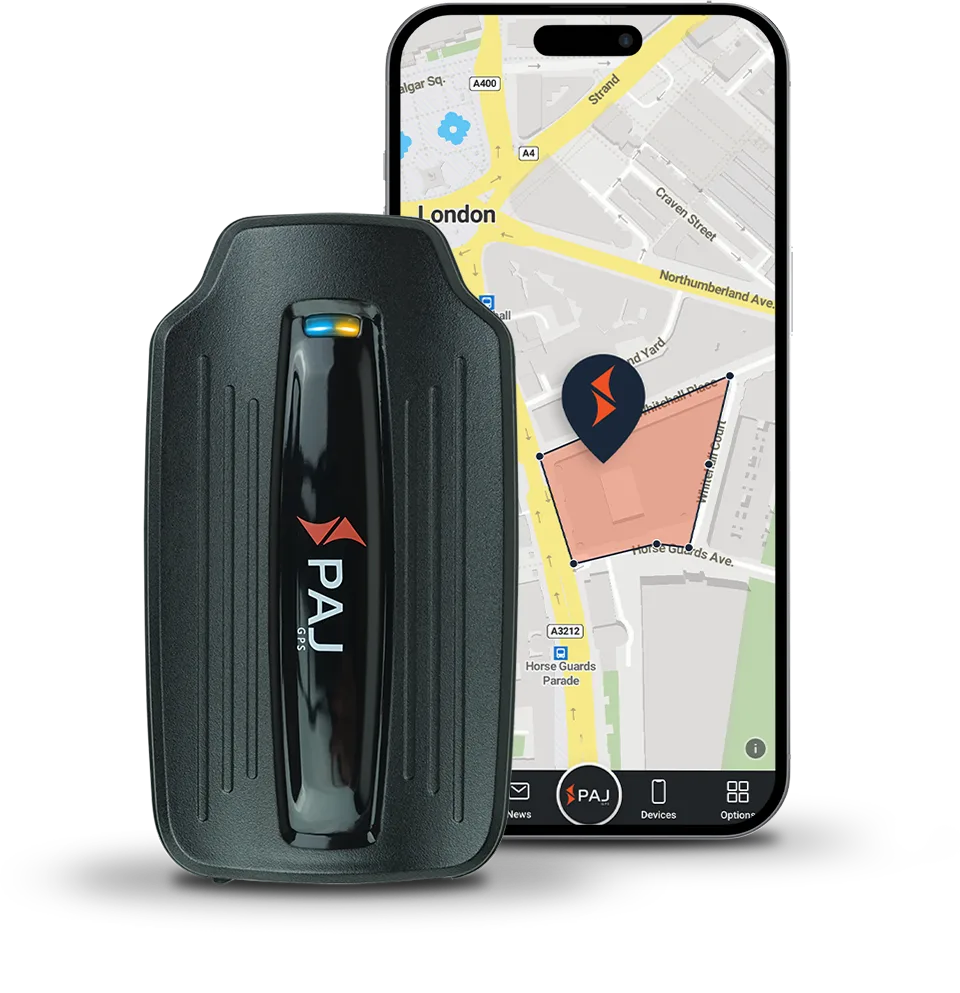
Instant notifications of movement, vibration, entering or leaving specified zones, and other events

Regular Updates

Continuous improvements and new features based on customer feedback

User Management

Assign roles and permissions with ease – from Admin to basic User

Open API

Build tailored solutions – from fleet systems to smart home automation

Live tracking

Current locations of all your GPS trackers at any time - whether car, motorcycle, bicycle or other devices

Route history & analyses

Trace past routes up to 365 days back – with detailed analyses

Central device management​

Manage multiple GPS trackers in one place with a clear overview

Cross-Platform Access

Use the portal seamlessly on smartphone, tablet, or desktop

Intelligent alarms

Instant notifications of movement, vibration, entering or leaving specified zones, and other events

Regular Updates

Continuous improvements and new features based on customer feedback

User Management

Assign roles and permissions with ease – from Admin to basic User

Open API

Build tailored solutions – from fleet systems to smart home automation

Try the FINDER Portal for Free​

With our trial access, you can explore all functions. A demo tracker records routes regularly, so you can experience the portal realistically.

1
Open the FINDER Portal

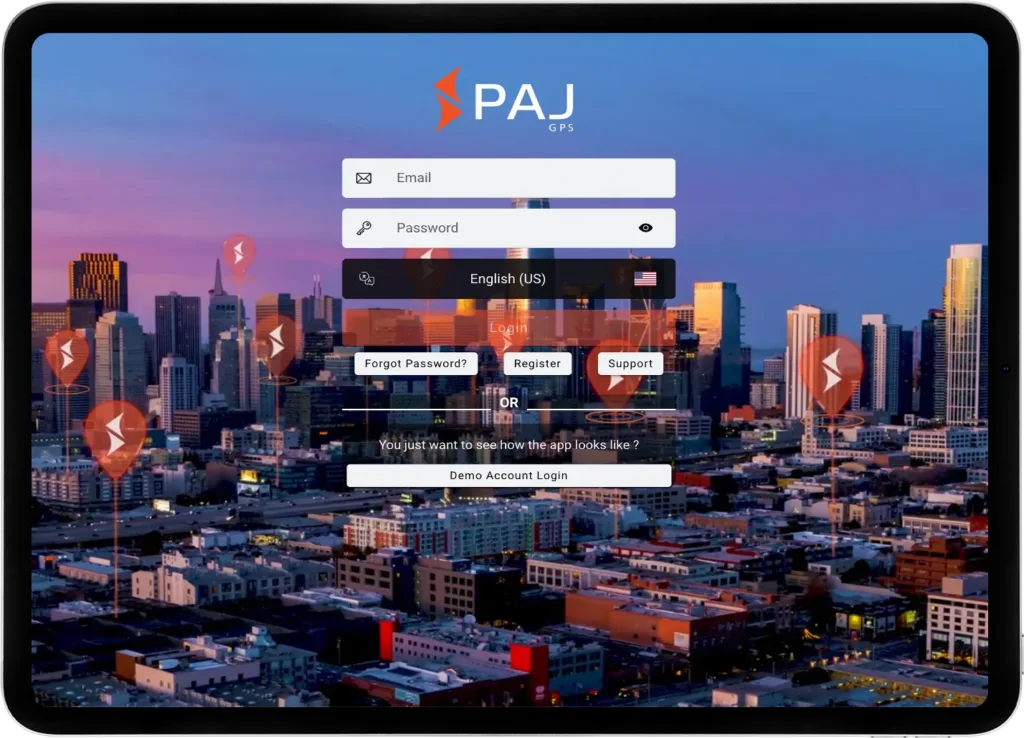
Download the FINDER Portal v2 app from the App Store or Google Play, or access it directly via your browser at www.finder-portal.com

2
Select Demo Login​

Open the app or web version and click on
“Demo Account Login”

3
Explore Functions

Start using the portal with the integrated demo tracker – no registration required

* Since multiple users share this access, we do not recommend enabling notifications permanently.
** You may choose whether to allow the app to access your device’s location. This does not affect the demo access or tracker functionality.

What to Expect in the FINDER Portal
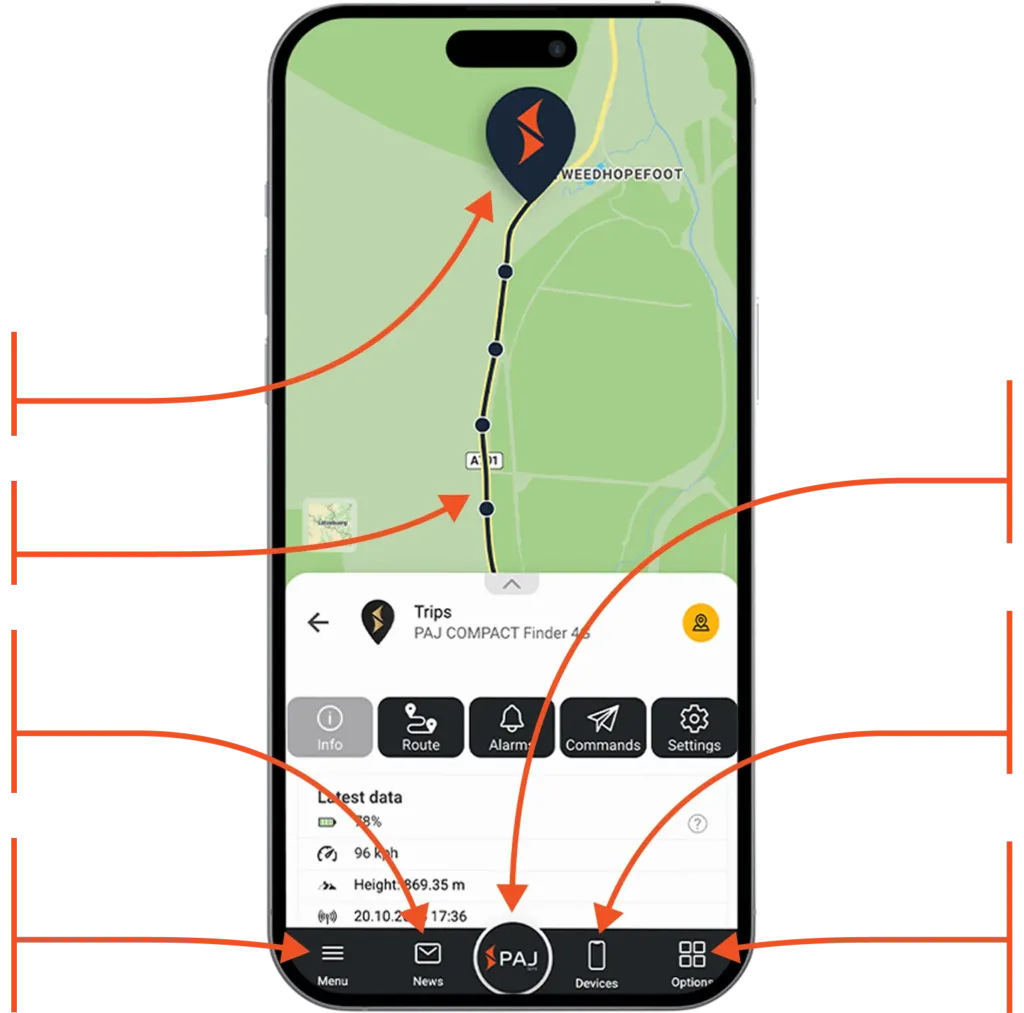
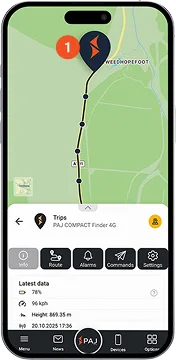
Current location of the device
Route traveled​
Instantly access recent activities, routes, and alarms
Manage your account, adjust app settings and access the manual to discover all the features
Tap to return to the map view and refresh the data and refresh the data​
Manage your device: View data, analyze routes, set alarms, and adjust settings
Customize your map view: Switch to 3D view, show or hide routes, waypoints and alarms
What to Expect in the FINDER Portal
Multilingual and Cross-Device Compatible

Simple, flexible, and available on all devices

The FINDER Portal is designed for maximum flexibility – usable on desktop, smartphone, and tablet. Thanks to the multi-device function, it can be used on several devices simultaneously, ideal for sharing with family, friends, or colleagues. With support for 9 languages, it is especially user-friendly and globally accessible.

Trusted by over 520,000 customers in more than 30 countries worldwide.​

See for yourself what others are saying!

Software Made in Europe

Your privacy is always our top priority. All data is stored securely on a European server managed under German law. User profiles are never created from your data, nor is it shared with third parties. Your data belongs only to you.

Open the FINDER Portal

All transmitted data is fully encrypted to protect your personal information and location data

Regular Security Updates

With PAJ GPS, you are protected from data leaks thanks to continuous updates that address new threats and enhance system security

Compliance with Privacy Regulations

We adhere to strict regulations and employ robust security measures to ensure your data is handled responsibly and safely

Get Started Today with our
All-in-One GPS Solution
1
Buy a GPS tracker

Choose the perfect tracker for your needs.

2
Choose a subscription

Choose a plan that flexibly adapts the duration and features to your needs. The subscription is part of the complete GPS solution.

3
Start tracking

Sign in to the app and start tracking immediately.

Download the FINDER Portal
and Start Immediately

Start tracking today! Visit finder-portal.com or download the app directly from your preferred app store

FAQ
Have questions, We got answers.
Everything you need to know about our process, and how we deliver results.
Where can I log in?

Click here to go directly to the new FINDER Portal V2. If you have any further questions about the FINDER Portal, please visit our specially developed and illustrated help page.

Can I use multiple devices with one account ?

You have the option of connecting several devices to one FINDER portal account. This allows you to see several FINDERs on one card at the same time, which can be distinguished by different colors, for example.

However, it is important to note that a separate subscription must be taken out for each device. This is because each GPS tracker uses its own SIM card and therefore incurs connection costs.

If you have any further questions about the FINDER portal, please visit our specially developed and illustrated help page.

Can I activate several alarms at the same time?

Yes, the FINDER offers the option of activating several alarms simultaneously. The available alarms may vary depending on the FINDER model.

Possible alarms that can be activated are :

  • SOS
  • Shock
  • Power interruption
  • Drop alarm
  • Ignition alarm
  • Speed alarm
  • Enter/exit area
Can multiple e-mail addresses receive alarms from my FINDER?

Yes, this is possible. You can specify up to 3 e-mail addresses which should receive alarms. This means that different people can be informed about alarms from your FINDER at the same time.

If you have any further questions about the FINDER portal, please visit our specially developed and illustrated help page.

How long will my data be stored in the FINDER Portal?

The route data of your devices and the overview of alarms triggered in the last 365 days are automatically saved in the portal. After this time or if you cancel your subscription, the data will be deleted from your account.

If you would like to keep the data, you can download the alarm overview and route data from the portal beforehand and save it locally on your PC or smartphone.

If you have any further questions about the FINDER portal, please visit our specially developed and illustrated help page.

Can the subscription for the FINDER portal be activated/deactivated at any time?

Yes, for example, if you have taken out a monthly subscription, you can cancel it at the end of the month and then sign up again at any time if you need to. You can also pause the subscription and simply reactivate it when you need it again.

If you have any further questions about the FINDER portal, please visit our specially developed and illustrated help page.

What does the blue position (marker) in the FINDER portal mean?

This is the location of the device you are using to access the FINDER portal. For example, the location of your PC, tablet or smartphone.

If you have any further questions about the FINDER portal, please visit our specially developed and illustrated help page.

How can I share the location of my FINDER with other people ?

You can make your FINDER accessible to other people via a share link. This enables these people to access the position or route of the device.

In the PORTAL Finder V2 (new):

  1. Open the menu at the top left and select “Device management”.
  2. Click on the gear icon next to the ID number of the device.
  3. Activate the “Share” option.
  4. Copy the generated link or send it directly.

People who have access to the link can only see the current position of the FINDER and the route previously defined by the main user. All other functions and configuration options are hidden.

In the PORTAL-Finder V1 (old)

  1. Navigate to the settings menu by clicking on the gear icon and then on “DEVICE MANAGEMENT”.
  2. Select the device you wish to share.
  3. You will find the sharing link at the bottom of the settings. Copy this link and share it with the desired person. Alternatively, you can also send it directly by email.

People who have access to the link can only see the current position of the FINDER and the route previously defined by the main user. All other functions and configuration options are hidden.

If you have any further questions about the FINDER portal, please visit our specially developed and illustrated help page.

How do I cancel my subscription ?

To cancel the subscription, proceed as follows:

FINDER Portal V2 (new):

  1. Please click on the menu at the top left.
  2. Select “Account” and then “Portal licenses”.

FINDER Portal V1 (old):

  1. In the FINDER portal, simply click on the cogwheel at the top right.
  2. Then select “My portal account” > “Portal licenses”.

There you can then display the corresponding license and simply cancel it.

If you have any further questions about the FINDER portal, please visit our specially developed and illustrated help page.

How can I change the notification sound for the Portal app ?

Would you like to set a special ringtone for the FINDER portal app so that you can distinguish the alarm messages from your FINDER from your other push notifications?

In the V2 Portal:

  1. Open your phone settings.
  2. Go to “Notifications”.
  3. Select the V2 Portal app from PAJ and check that the following settings allow message delivery.
  4. To select the respective alarm tones, please open your app.
  5. Open the menu at the top left and click on “Alarm summary”.
  6. Then click on the gear icon next to “Notifications”, here you will get a selection of alarm sounds and can choose accordingly.

In the V1 portal:

  1. Open your cell phone settings.
  2. Go to “Notifications”.
  3. Select the “ONLINE Finder Portal” app from PAJ.
  4. Tap on “Alarms”.
  5. Then tap on “Advanced”.
  6. Here you can now set an individual notification sound for the app under “Sound”. You can use standard ringtones from your smartphone or your own alarm tones, which you can download from the Internet, for example.
If you have any further questions about the FINDER portal, please visit our specially developed and illustrated help page.