





















 Technical Sheet PDF



Please follow these simple steps:

• Go to www.start.finder-portal.com
• Enter your FINDER ID
• Enter the code from the included activation card

• Install the device into the OBD port

• Download the Portal FINDER application


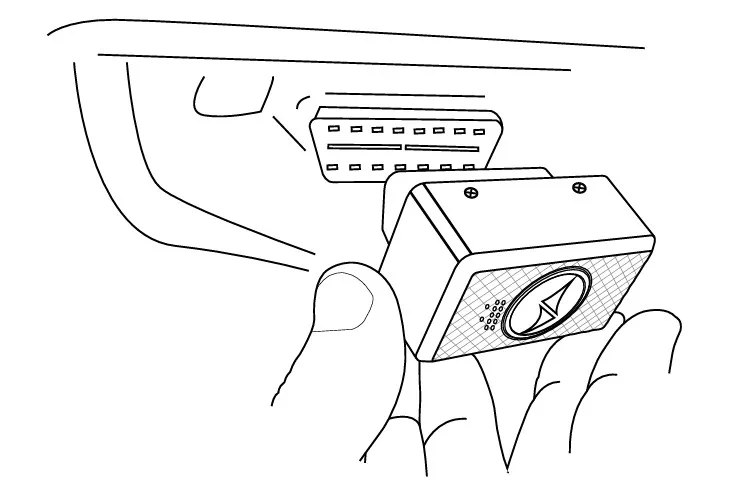
You can switch on the CAR OBD Finder 4G 3.0. By connecting the device to the power supply, the device has already been switched on. No on/off switch is needed.

| Signal | Meaning |
|---|---|
| The orange LED is blinking | Searching for a GSM signal |
| The orange LED is off | The GPS Tracker is in standby mode or switched off |
| The orange LED is fixed | A GSM signal is available |

| Signal | Meaning |
|---|---|
| The blue LED is blinking | Searching for a GPS signal |
| The blue LED is off | The GPS Tracker is in standby mode or switched off |
| The blue LED is fixed | A GPS signal is available |
Please have a look at our
If the route recording is not working please try to restart your device.
Make sure your FINDER is charged & switched on.To assist the connection, move the FINDER (short walk/drive) and restart if needed. If the FINDER still doesn’t connect, contact our support.
Ensure your device has a stable network connection & perform a power cycle by turning the device on and off.If it still doesn’t work please contact our support team .
Try using a different wall plug or charging cable, and ensure to turn on and off the device as part of the troubleshooting process
Our in-house customer service team will be happy to assist you with any questions relating to your product.








 DE
DE FR
FR ES
ES IT
IT PT
PT USA
USA AUS
AUS