






















 Technical Sheet PDF
Please follow these simple steps:

• Before first usage fully charge your device

• Choose a subscription duration
• Select a service package (optional)
• Make payment

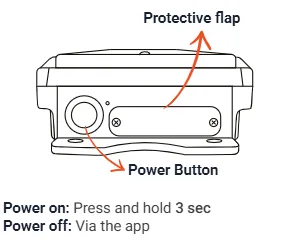
• Go outside and turn on the device
• Walk around for several minutes
• The device calibrates itself automatically

• Download the FINDER Portal App


or
• Access the FINDER Portal through your desktop browser

| Signal | Meaning |
|---|---|
| The orange LED is on | Signal available |
| The orange LED flashes every 2-3 sec. | Searching for a signal |
| The orange LED is off | The GPS tracker is in standby mode or switched off |

| Signal | Meaning |
|---|---|
| The blue LED is on | GPS signal available |
| The blue LED flashes every 2-3 sec. | Searching for a signal / Wifi Home active |
| The blue LED is off | The GPS tracker is in standby mode or switched off |

| Signal | Meaning |
|---|---|
| The red LED is on (when attached to power supply) | The GPS tracker is charging |
| The red LED is off (when attached to power supply) | The GPS tracker is fully charged |
Please have a look at our
If the route recording is not working please try to restart your device.
Make sure your FINDER is charged & switched on.To assist the connection, move the FINDER (short walk/drive) and restart if needed. If the FINDER still doesn’t connect, contact our support.
Ensure your device has a stable network connection & perform a power cycle by turning the device on and off.If it still doesn’t work please contact our support team .
Try using a different wall plug or charging cable, and ensure to turn on and off the device as part of the troubleshooting process














 DE
DE FR
FR ES
ES IT
IT PT
PT USA
USA AUS
AUS